Use the extension to select, then choose where checks run.
An extension is useful when you can point to the content more easily than describe its location. A price, stock label or list of jobs may be surrounded by content you do not want to capture.
PageFluxer’s Cloud/Local-capable extension offers two ways to continue. Cloud sends your draft into the website for an independent preview. Local tests and runs supported checks in your Chrome profile, with selected captures sent to PageFluxer for comparison and notifications.
| Question | Cloud | Local Browser |
|---|---|---|
| Can I close Chrome? | Yes; scheduled captures run on PageFluxer. | No; Chrome must keep running on an awake computer. |
| Does it use this website login? | Not automatically. Supported authenticated Cloud pages need a separate site connection. | Chrome uses its existing website session, subject to fresh-tab compatibility. |
| Where do I test the capture? | In the PageFluxer Cloud preview. | In a fresh inactive tab opened by the extension. |
| Where do I manage delivery? | On the monitor’s PageFluxer details page. | On the monitor’s PageFluxer details page. |
Make a selection that will still mean something tomorrow.
Install, pin and open the extension.
Use the official download link on the Chrome extension page. Open a normal HTTP or HTTPS page, then click PageFluxer. Check the installed version if the Cloud/Local controls described here are not available.
Choose a goal and point to the content.
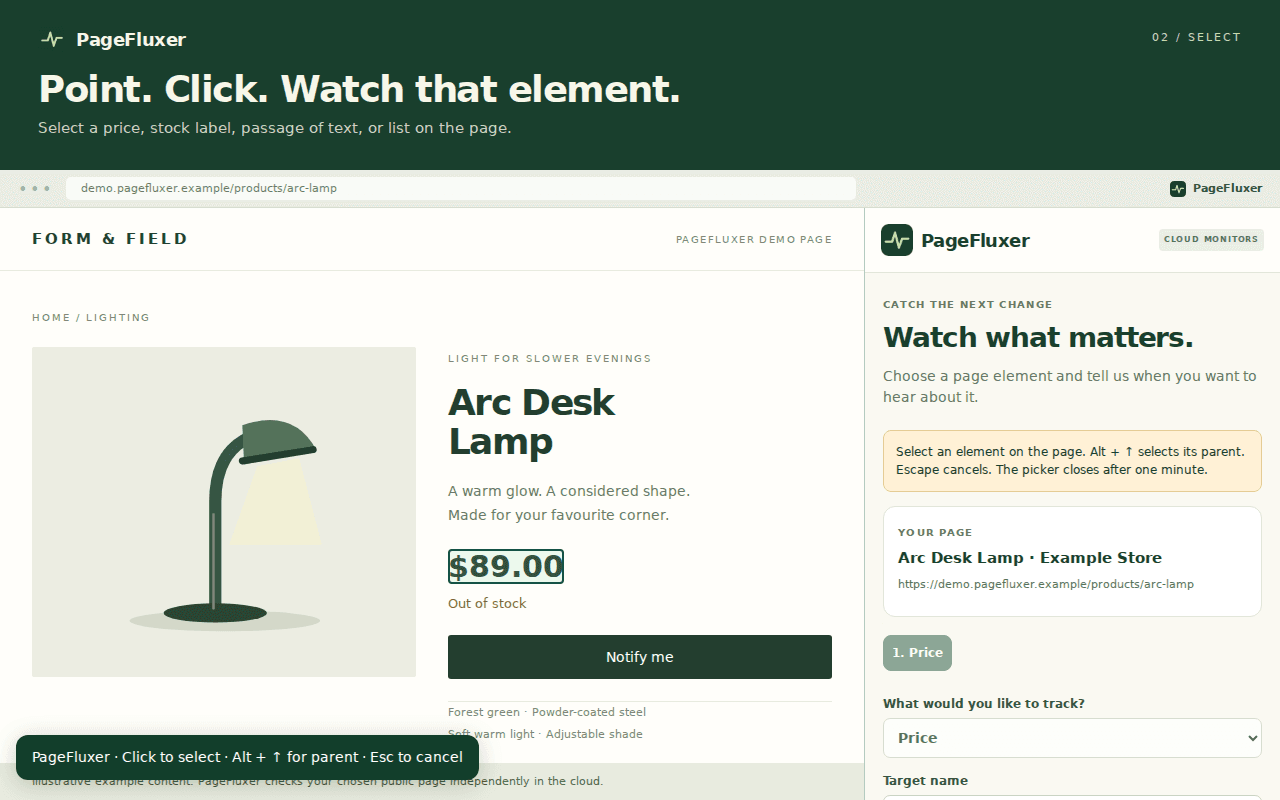
Use Select on page for a specific element. Hover and click the price or section you need. Alt + Up moves to a parent container; Escape cancels. Whole-page text and new-item monitoring can start without picking an element.
Review the selected scope.
Select the current price rather than a crossed-out old price or monthly-financing amount. For a listing, choose the list container. Confirm a stock label belongs to the exact product variant you want.
Set the condition.
Use text, price, availability or new-link rules. Up to three targets can share a supported content monitor. Use Any for independent triggers or supported All conditions when the decision requires the same capture to satisfy them together.
Finish with a test of the actual check method.
For Cloud
Choose Continue in PageFluxer, sign in and select the correct workspace. Verify the independent capture and selected values before saving. Cloud HTML and Cloud Browser are separate loading methods with separate allowances; the website’s preview is what confirms your chosen method can see the content.
For Local
Connect the browser, have an owner or admin approve the workspace connection, then return to Finish connecting. Set the interval, confirm selected-content sharing and grant access to the monitoring site. For a signed-in page, add a unique visible marker that confirms access. Choose Test & start Local monitor.
A Local test opens a temporary inactive tab. You can close the original tab and side panel afterward. Keep Chrome running on an awake, online computer; sleeping, browser shutdown, throttling and expired logins can delay checks. The Local guide covers scheduling and recovery in detail.
Prepare a page only when the capture needs it.
A public filter or dropdown may be needed to expose the right content. Record only supported, non-sensitive steps, then test the final capture. Recording operates on the real website, so a click can have consequences beyond the monitoring setup.
Never record passwords, payment details, purchases, private searches or confidential values. Local supports bounded DOM actions such as safe clicks, fill, select, check, wait and scroll, but native key presses and foreground-dependent flows are outside this release. Cloud replay can behave differently.
Understand site access and selected-content sharing.
Local asks for access to the individual websites you choose. It stores its schedule and a scoped PageFluxer connection token in extension storage. It does not read your saved browsing history or upload website cookies, passwords, authorization headers or browser authentication storage.
Selected text and link data, page titles and URLs, monitor settings and explicitly recorded non-sensitive values go to PageFluxer. Those selections can still contain private information. Local is not an offline-only service, and normal workspace history and delivery access applies.
Edit and test Local capture settings in the connected extension. Pause, resume or delete from the extension or the web dashboard; the browser applies web changes after successful synchronization. Read the extension documentation and the signed-in workflow guide for the next level of detail.
Common questions
Why do I not see the Local option?
Can Local capture screenshots or PDFs?
Does the extension need every monitored tab to stay open?
Sources and further reading
Official sources reviewed on October 14, 2026. PageFluxer behavior is described by the linked product guides and current plan configuration.