Catch the words that change.
Watch an announcement, a passage of text, or the page itself. Get an alert when the content changes, a phrase appears, or a phrase disappears.
See something worth watching? Select it right on the page, choose what should trigger an alert, and send it to PageFluxer.
For Chrome on desktop · Free to install · PageFluxer account required
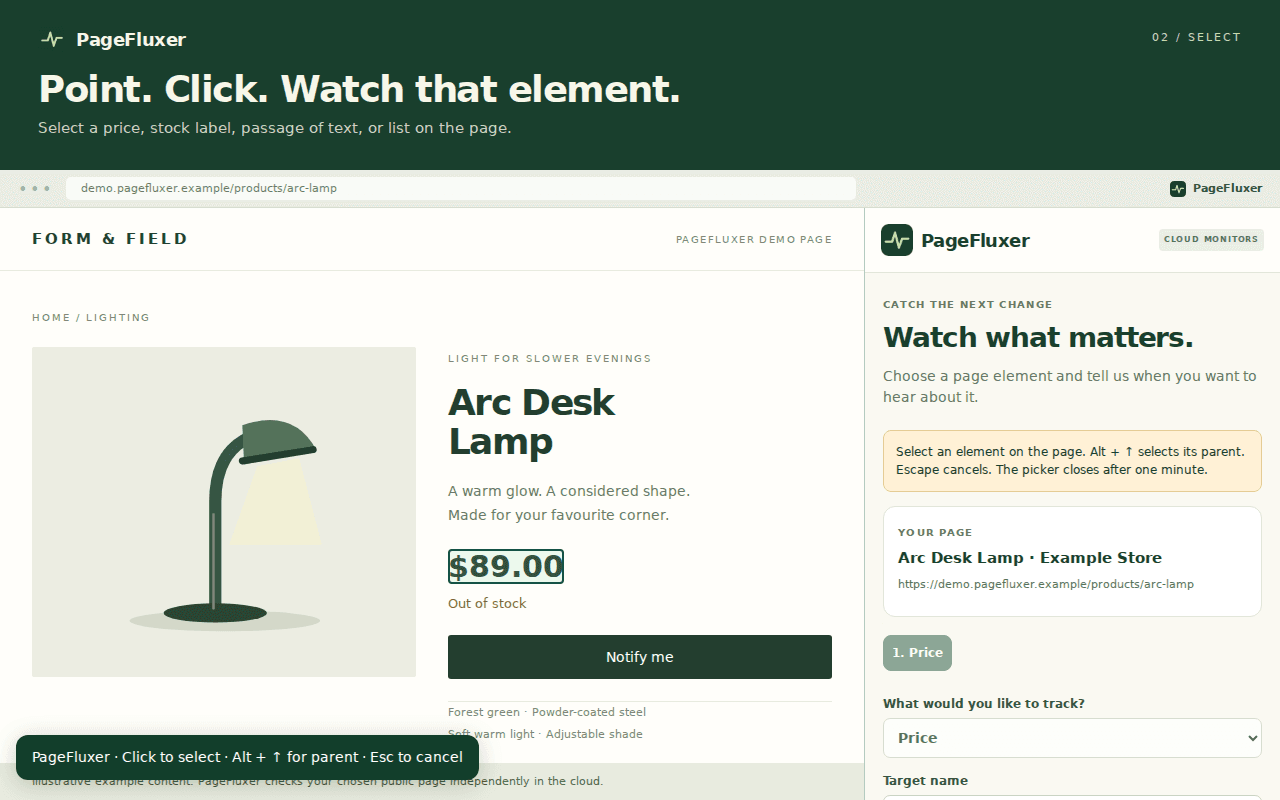
Pick in Chrome. Monitor in the cloud. Once you save, PageFluxer checks on your schedule—even with Chrome closed. Your browser login and cookies aren’t transferred.
Start from the page you already have open. Choose up to three targets on that page, each with its own alert rule.
Watch an announcement, a passage of text, or the page itself. Get an alert when the content changes, a phrase appears, or a phrase disappears.
Select the price on a product page. Watch for any price change, a decrease, or the price crossing below an amount you choose.
Select a stock label and match the wording the website uses. Get an alert when the item becomes available or unavailable.
Select a list of links, such as jobs or announcements. Watch for new entries, with an optional phrase to narrow the matches.
The extension starts your draft. PageFluxer’s website helps you confirm the content and finish setting up the monitor.
Install the extension, pin it to your toolbar, and open a public webpage. Click PageFluxer to read that tab’s URL and title.
Choose your goal and use “Select on page” to pick an element. Set a condition such as a price decrease, new wording, or an item coming back in stock.
Click “Continue in PageFluxer” and sign in on the website. Compare your selection with what PageFluxer can independently load. Confirm the extracted values before you save.
Choose your schedule and notifications, review the monitor, and start watching. PageFluxer handles the checks in the cloud and alerts you when a later check matches your rule.
The extension reads the current tab after you click it. The element picker runs when you ask it to, and the extension keeps a temporary setup draft for the handoff to PageFluxer.
It doesn’t request your browsing history, passwords, or cookies. Sign-in happens on PageFluxer’s website; the extension doesn’t store an API key.
Read our privacy policy →Yes. The extension is free to install and works with PageFluxer’s Free plan. You need a PageFluxer account to save monitors. Monitoring frequency, check allowances, and other service limits depend on your plan. Compare plans.
No. Once you finish setup and save your monitor on PageFluxer, checks run in the cloud. Your computer and Chrome can be closed.
No. The extension does not transfer browser cookies, login sessions, or passwords. PageFluxer must be able to load the content independently. A selection visible only while you’re signed in may be missing from the cloud preview.
Check that you selected the right element. If the page needs JavaScript, try Browser checks when available on your plan. If PageFluxer still can’t read the content you want, don’t save that selection. Selecting something in Chrome doesn’t guarantee it can be monitored from the cloud.
This release is for Chrome on desktop. Start on a public HTTP or HTTPS webpage. Chrome’s internal pages and the Chrome Web Store cannot use the picker. Some embedded frames and custom page components also cannot be selected.
Click “Continue in PageFluxer.” If you aren’t already signed in, use the email sign-in flow on the website and open the email link in the same Chrome profile. PageFluxer restores your draft so you can preview and finish setup.
Add PageFluxer to Chrome and start your next monitor from the page itself.
Need a hand? Contact support or read the monitor setup guide.